


Oops... looks like the spiders padded through here
Add products to your cart and remove them from here Lets buy
On this page, you will find all the information on how to add a key to the plugin.
Keys have their own category that you can easily access from the in-game editor to create and manage your existing keys.
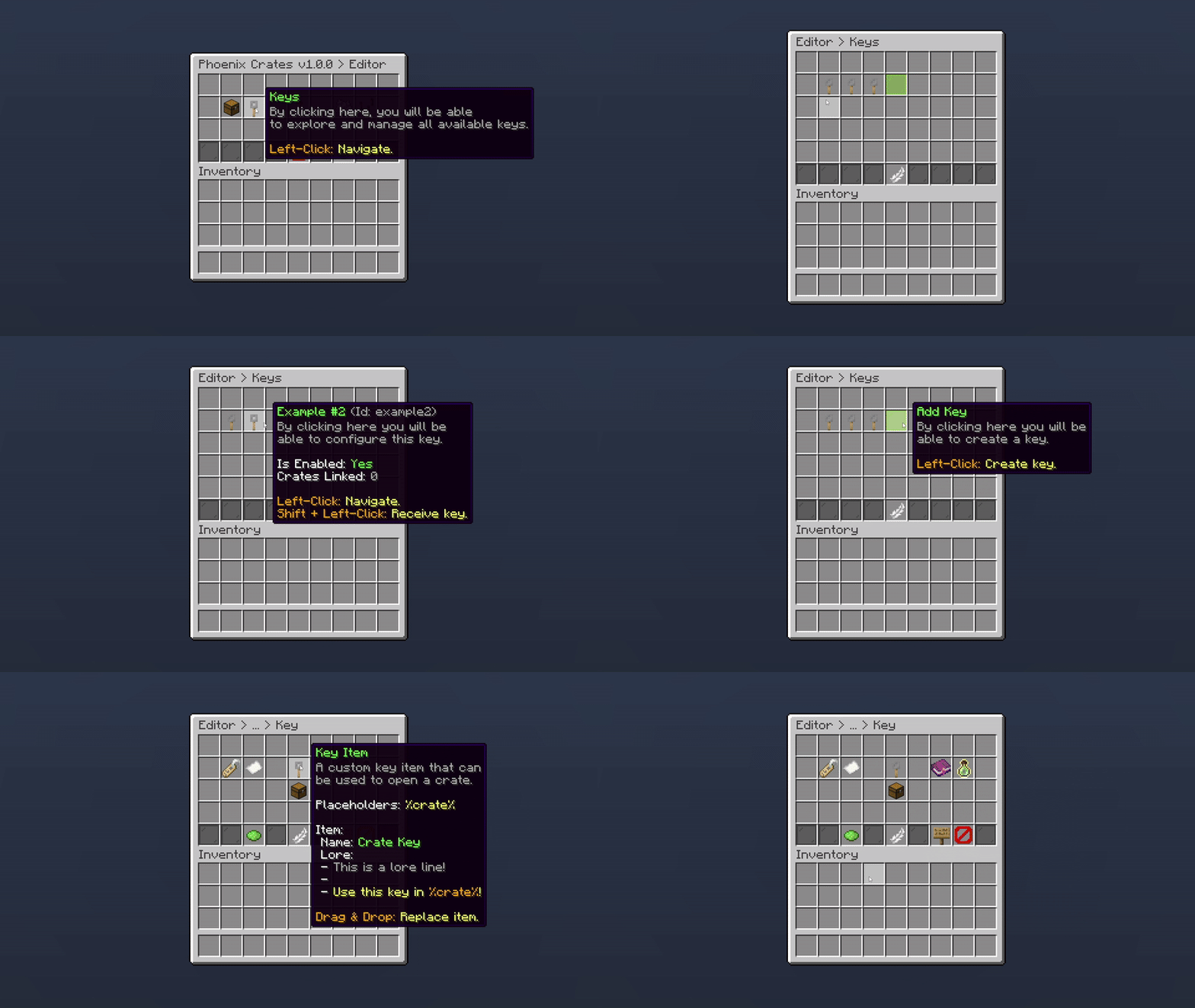
Editor > Keys
Our crate plugin offers a variety of features to let you customize your keys exactly how you want. It is highly versatile and easy to manage using our in-game editor.
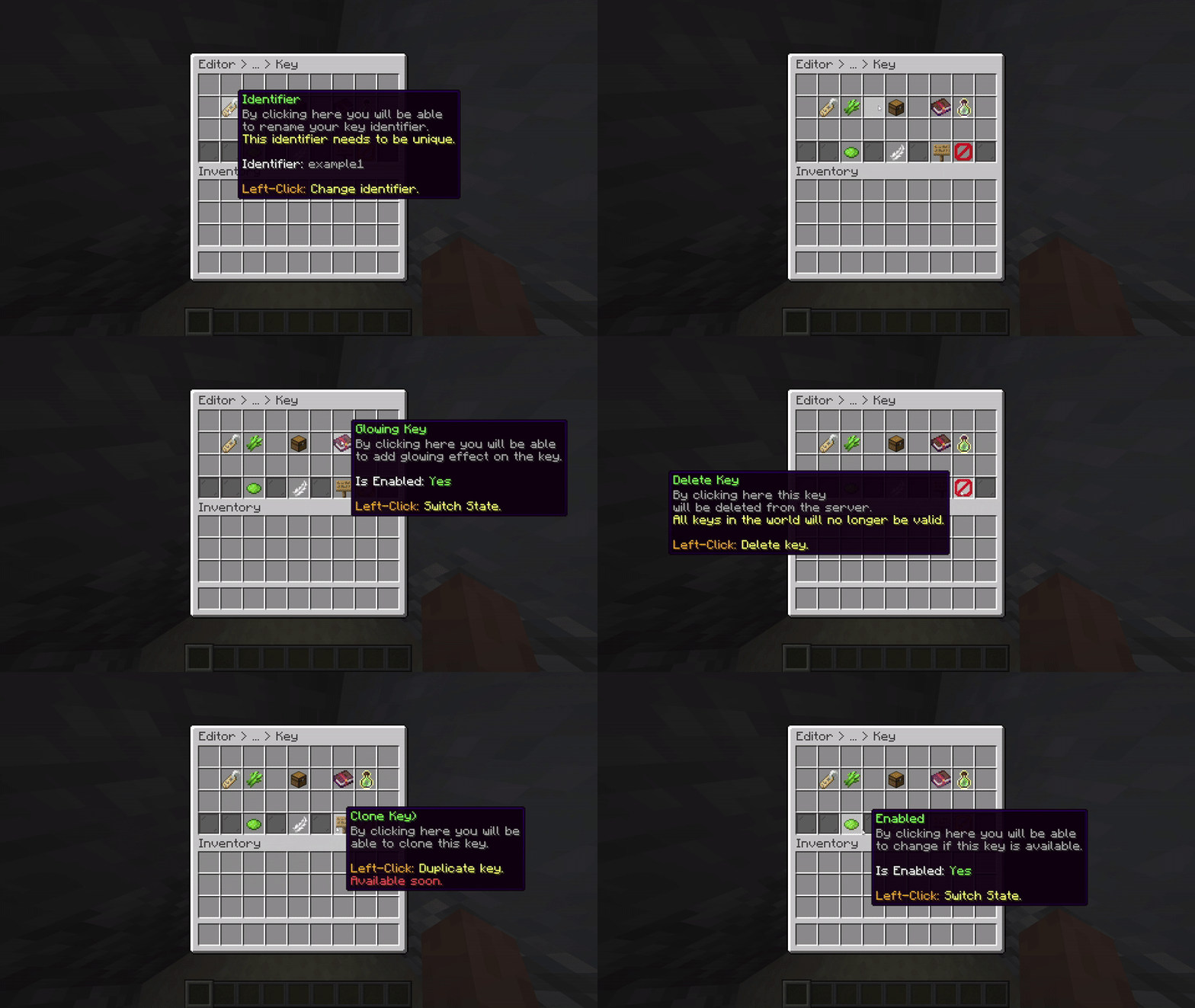
Editor > Keys
Click on the following features to be directed to their respective wiki pages.
From here, you can quickly navigate to a specific feature related to keys.
| Features | Description |
|---|---|
| Identifier | Set a unique ID for your key. |
| Display Name | Change the display name for the key. |
| Key Material | Set the item material for the crate. |
| Glowing Key | Make your key glow. |
| Virtual Key | Set the crate as virtual. |
| Link Crates | Link your key to a crate(s). |
| Enabled | Swap the status of the key. |
| Clone Key | Duplicate your key. |
| Delete Key | Quick Delete the key |
| Key Requirement (Selective Rewards) | The required amount of keys for a reward. |
| Key Priority | Arrange which key will get consumed first. |
| Link Keys | Link your crate to a key(s). |
| Key Rarity |
Oops... looks like the spiders padded through here
Add products to your cart and remove them from here Lets buy